.png)
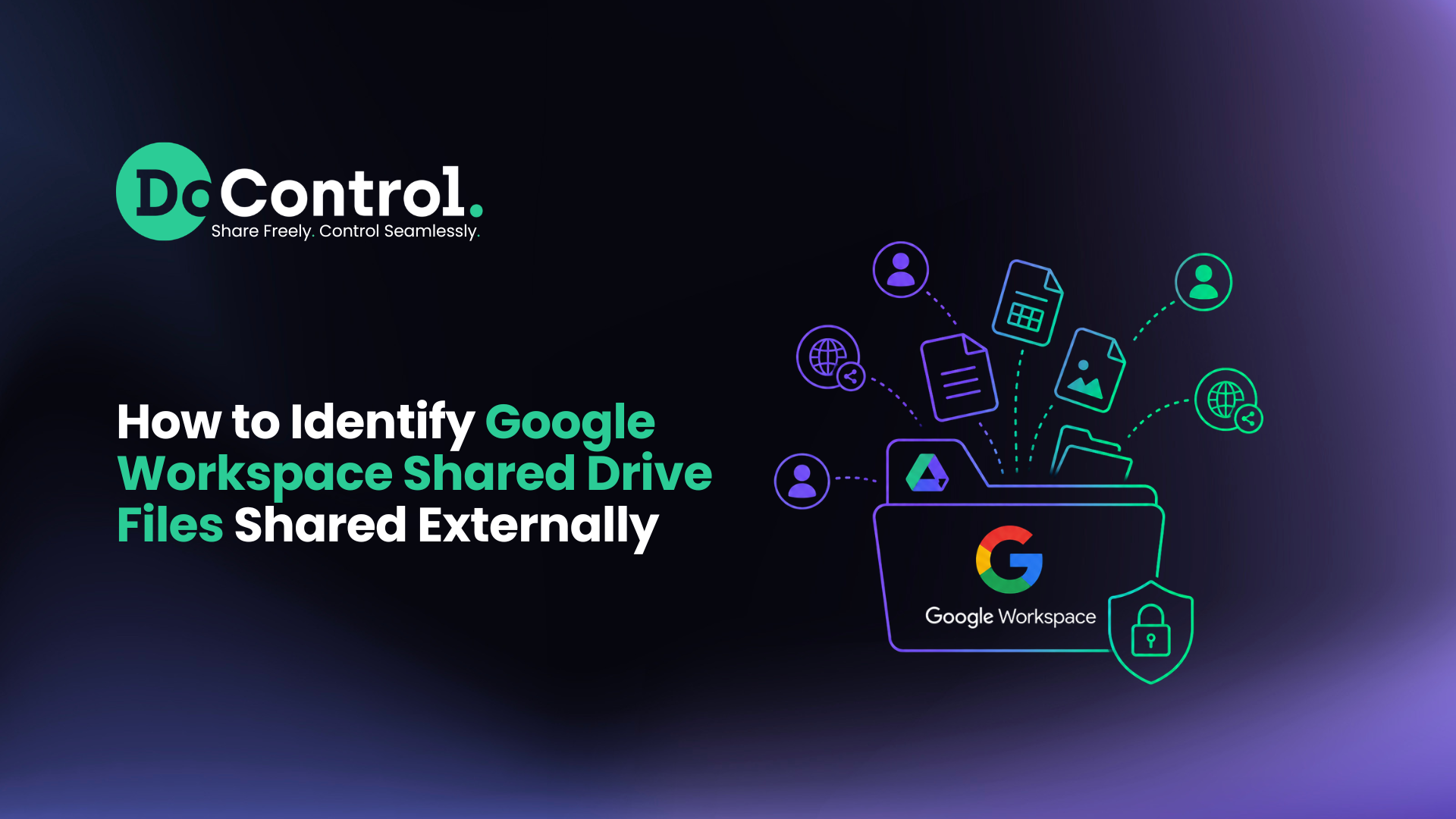
Google Workspace makes collaboration with customers, contractors, vendors, and partners incredibly easy. But as external collaboration grows, so does one important challenge: knowing exactly which Shared Drive files are accessible outside your organization.
Imagine discovering that a contractor still has access to your product roadmap six months after their engagement ended. Not because a security review caught it — but because they made edits or changes to the document.
Scenarios like this are surprisingly common.
The problem is rarely malicious. It's structural. Files get shared, projects end, employees leave, and external permissions quietly remain in place. Over time, organizations accumulate hundreds (or even thousands) of external collaborators across Google Shared Drives without realizing it.
While Google Workspace provides several native security capabilities to identify externally shared files and folders, there isn't a single dashboard that gives administrators a complete, real-time inventory of external access. Instead, admins often rely on a combination of audit logs, reports, APIs, and custom scripts to understand what data is exposed.
This guide walks through every native method available to identify externally shared files in Google Workspace Shared Drives, explains the strengths and limitations of each approach, and outlines what to do after you've identified external access.
By the end of this guide, you'll know how to:
- Identify every type of external sharing in Google Workspace Shared Drives
- Understand how Shared Drive permissions and file-level permissions differ
- Audit externally shared files using the Google Admin Console, Drive API, and Apps Script
- Recognize the limitations of Google's native auditing capabilities
- Review and validate existing external collaborators
- Build a repeatable audit process for ongoing visibility
- Automate Shared Drive audits and remediation at enterprise scale
Why Shared Drive Audits Matter
Shared Drives are designed to make collaboration easier. Unlike My Drive, where files are owned by individual users, Shared Drive content belongs to the organization. This ensures important business data remains accessible even when employees change roles or leave the company.
While organizational ownership improves continuity, it doesn't automatically simplify permission management.
External access can accumulate over time as employees become terminated, and as employees collaborate with vendors, agencies, contractors, customers, and business partners.
For example, a file shared for a short-term project may remain accessible to an agency long after the work is complete, and those permissions often go unnoticed because there's no single, real-time inventory of externally shared content in Google Workspace.
Another challenge is understanding how permissions actually work.
Shared Drive membership and file sharing are two separate permission layers. Someone may be added as a member of the Shared Drive, granting access to its contents, while individual files can also be shared directly with external users who aren't members of the drive itself.
As a result, reviewing Shared Drive membership alone doesn't provide a complete picture of who can access your organization's data.
External sharing generally falls into four categories:
Each sharing type serves legitimate business purposes, but each should be reviewed regularly to confirm access is still appropriate and that the data is secur.
This is why periodic Shared Drive audits are so important. Whether you're preparing for a compliance assessment, offboarding employees or contractors, reviewing third-party access, or simply maintaining good security hygiene, the first step is understanding which files and folders are currently shared externally and whether that access still aligns with your organization's needs.
How to Identify Externally Shared Files in Google Workspace Shared Drives
Google Workspace offers several ways to identify externally shared files and folders, but no single capability within native Google Workspace provides a complete, real-time inventory of every external permission across your environment.
Depending on the size of your organization and the level of visibility you need, administrators typically use a combination of audit logs, reporting tools, APIs, and custom scripts to review external sharing.
Here's how each method works.
1. Google Admin Console Audit Logs
The quickest place to begin is the Google Admin Console.
Navigate to:
Reports → Audit and Investigation → Drive Log Events
From there, you can filter events such as:
- Shared externally
- Anyone with the link
- Public on the web
- Change sharing settings
These logs are useful for investigating recent sharing activity and understanding when permissions were modified, who made the change, and what visibility level was applied.
However, it's important to understand what Audit Logs are designed to do.
They record events, not the current state of your environment.
If a file was shared externally nine months ago and no changes have been made since, that permission may still exist — even though it no longer appears in your audit logs.
2. Google Workspace Reports
Google Workspace also includes reporting dashboards that summarize sharing activity across your organization.
These reports can help answer questions like:
- How many files have been shared externally?
- How many files are publicly accessible?
- Are external sharing trends increasing over time?
While these metrics are useful for measuring overall exposure, they don't provide the detailed inventory administrators need to review individual files or revoke specific permissions.
Think of reports as a way to understand how much external sharing exists — not exactly what is shared.
3. Drive API
For organizations looking to build a complete inventory of externally shared content, the Google Drive API provides the most comprehensive native option.
Using endpoints such as files.list and permissions.list, administrators can inspect every permission assigned to files stored within Shared Drives.
Key permission fields include:
- type — identifies whether access is granted to a user, group, domain, or anyone.
- emailAddress — shows which external user has access.
- domain — identifies organization-wide sharing with another company.
- allowFileDiscovery — indicates whether content is publicly discoverable.
Because the API queries the current permissions assigned to each file, it produces a much more accurate picture of external access than audit logs alone.
The tradeoff is complexity. Building and maintaining API-based audits requires scripting knowledge, authentication, pagination handling, and ongoing maintenance — especially in large Google Workspace environments.
4. Google Apps Script
Many administrators automate Drive API queries using Google Apps Script.
A typical script scans Shared Drive contents, evaluates each file's permissions, and exports the results into a Google Sheet for review.
The exported inventory often includes:
- File name
- File owner
- Shared Drive
- Sharing type
- External email addresses
- Public or link-sharing status
For one-time audits, this approach works well and is the same general methodology used by many third-party administrators and consultants.
The challenge is that every report represents a single point in time.
If someone creates a new external share five minutes after the script finishes running, that change won't appear until the next audit.
As organizations grow, manually rerunning scripts becomes increasingly difficult to manage.
Native Google Audit Methods Compared
Each native Google capability serves a different purpose. Understanding when to use each one helps administrators build a more complete audit process.
No matter which native method you choose, they all share one common limitation: they're designed to help administrators investigate external sharing at a glance — not continuously monitor data access governance in a scalable manner.
That's why many organizations who are only using native Google Workspace security features perform recurring Shared Drive audits as part of quarterly security reviews, compliance assessments, vendor access reviews, and employee offboarding processes.
{{cta-1}}
What to Review After You Identify External Sharing
Finding externally shared files is only the first step. The next challenge is determining which permissions are legitimate, which are outdated, and which create unnecessary exposure.
A practical Shared Drive audit should answer five questions for every external share:
1) Who has access?
Confirm whether the recipient is a current contractor, partner, customer, agency, or vendor.
2) Why was access granted?
Determine whether the permission still supports an active business purpose.
3) What level of access do they have?
External users may have Viewer, Commenter, Contributor, Content Manager, or Manager permissions. Higher permission levels should receive greater scrutiny.
4) What data is being shared?
Prioritize files containing customer information, financial records, credentials, intellectual property, product plans, employee data, or regulated information.
5) How was access granted?
Identify whether the file was shared with a named user, an external domain, anyone with the link, or publicly on the web.
It’s important to reiterate that doing this one time at a glance is fine if you are looking for something specific, an incident occurred, or if you're doing a period/quarterly cleanup.
However, if you are a growing company that is increasingly adding more files, more users, more data, and more risk to your organization, it’s not scalable — and it's probably time to start investing in a Google Workspace security solution that grows with your business.
Shared Drive Audit Checklist
Use the following checklist to turn your findings into an actionable review:
- Review all external Shared Drive members.
- Identify individual files shared with non-members.
- Locate “Anyone with the link” permissions.
- Confirm whether public files were intentionally published.
- Remove former employees, contractors, and vendors.
- Review external users with Editor or Manager-level access.
- Validate partner and customer domains.
- Flag sensitive files with unnecessary external access.
- Document approved exceptions.
- Schedule the next audit.
The goal is not to eliminate every external share. External collaboration is a normal part of business. The goal is to confirm that every permission is intentional, appropriate, and still required.
Again, for smaller environments, this review may be manageable through exported spreadsheets and manual permission changes.
In larger Google Workspace environments, however, thousands of files and collaborators can make recurring reviews difficult to complete consistently. That is where point-in-time audits begin to fall short. By the time one review is finished, new shares may already have been created.
How DoControl Automates Google Workspace Shared Drive Governance and Data Protection
Google Workspace gives administrators several ways to identify externally shared files, but they're primarily designed for investigations and one-time reviews. Maintaining an accurate picture of external access over time is a different challenge entirely.
As organizations grow, Shared Drives evolve constantly. Employees collaborate with new vendors, contractors join short-term projects, partners receive access to documentation, and new files are shared every day. A report generated last week — or even yesterday — may no longer reflect your current exposure.
DoControl extends upon Google Workspace by continuously monitoring file permissions across Shared Drives, My Drive, and other connected SaaS applications, providing security teams with a real-time inventory of external access instead of a point-in-time snapshot.
Then, DoControl enables security and IT teams to actually remediate overexposed or externally shared files through automated remediation workflows.
Here’s how it works: rather than manually exporting spreadsheets or querying the Drive API, administrators can immediately see:
- Which Shared Drive files are shared externally
- Who has access to each file or folder
- How access was granted (named user, external domain, public, or anyone with the link)
- Which users have elevated permissions
- Which files contain sensitive or regulated data
- Which permissions violate organizational security policies
And, more importantly, DoControl turns this visibility into action.
Instead of reviewing thousands of permissions manually, security teams can create automated workflows that continuously enforce sharing policies across Google Workspace.
For example, organizations can automatically:
- Remove "Anyone with the link" permissions from sensitive files.
- Revoke external access when employees or contractors are offboarded.
- Detect unusual spikes in external sharing activity.
- Alert administrators when sensitive files are shared outside the organization.
- Bulk remediate risky permissions across thousands of files in minutes.
Because DoControl continuously monitors changes as they occur, administrators no longer need to rely on quarterly audits or manually rerun Apps Scripts to understand their external sharing posture.
The result is a more sustainable approach to Shared Drive governance — one that combines complete visibility, automated remediation, and continuous monitoring to help organizations confidently collaborate without losing control of their data.
Conclusion
Identifying externally shared files in Google Workspace Shared Drives is an essential part of maintaining visibility into your organization's data. And while Google's native tools can help uncover external access through audit logs, reports, APIs, and scripts, each provides only part of the picture and often requires manual effort to keep information current and the data secure.
Whether you're conducting a one-time security review, preparing for a compliance audit, or building a long-term governance strategy, regularly auditing external sharing helps ensure that access remains intentional, appropriate, and aligned with your organization's security policies.
By combining native Google Workspace capabilities with continuous monitoring and automated remediation, organizations can confidently support collaboration without losing control of sensitive business data.
Frequently Asked Questions
Can Google Workspace admins see every externally shared Shared Drive file in one place?
No. Google Workspace doesn't provide a single dashboard that displays a complete, real-time inventory of every externally shared file across Shared Drives. Administrators typically combine Drive Audit Logs, Workspace Reports, the Drive API, or custom Apps Scripts to build a complete picture of external access.
What's the difference between Shared Drive membership and file sharing?
Shared Drive membership grants users access to the drive itself based on their assigned role. Individual files and folders can also be shared separately with users who aren't members of the Shared Drive. As a result, reviewing Shared Drive members alone won't identify every external user who has access to your organization's data.
Can I export a list of externally shared files?
Yes. The Google Drive API and Google Apps Script can be used to generate spreadsheets containing externally shared files, folders, sharing permissions, and external collaborators. However, these exports represent a single point in time and must be generated again to reflect new sharing activity.
Do Drive Audit Logs show every externally shared file?
No. Drive Audit Logs record sharing events rather than the current state of file permissions. They also have a limited retention period, meaning older external shares may not appear even if those permissions are still active today.
How often should Shared Drives be audited?
Most organizations should review external sharing on a regular basis, particularly after employee or contractor offboarding, mergers and acquisitions, compliance reviews, or major organizational changes. Larger enterprises often benefit from continuous monitoring because external permissions can change daily.
Can Google automatically remove outdated external sharing permissions?
Google Workspace allows administrators to manage sharing policies and manually revoke access, but it doesn't automatically identify or remove stale external permissions across Shared Drives. Organizations that require continuous governance often supplement native controls with automation to detect and remediate unnecessary external access.