.png)
Google Drive makes collaboration easy. A file can be shared with a coworker, contractor, customer, or entire team in seconds.
The harder part is making sure that access remains appropriate over time.
To prevent unauthorized access to Google Drive files, organizations should restrict public and external sharing, follow least-privilege access, regularly remove unnecessary permissions, protect sensitive data with DLP policies, and continuously monitor who can access files as users, roles, and sharing relationships change.
For individual files, Google provides native controls for managing access. But for organizations with thousands of users and potentially millions of files, preventing unauthorized access becomes an ongoing Google Drive Security challenge.
Security teams need to know more than whether a file is shared. They need to know who can access it, what data it contains, how access was granted, whether that access is still appropriate, and what to do when it isn't.
What Is Unauthorized Access to a Google Drive File?
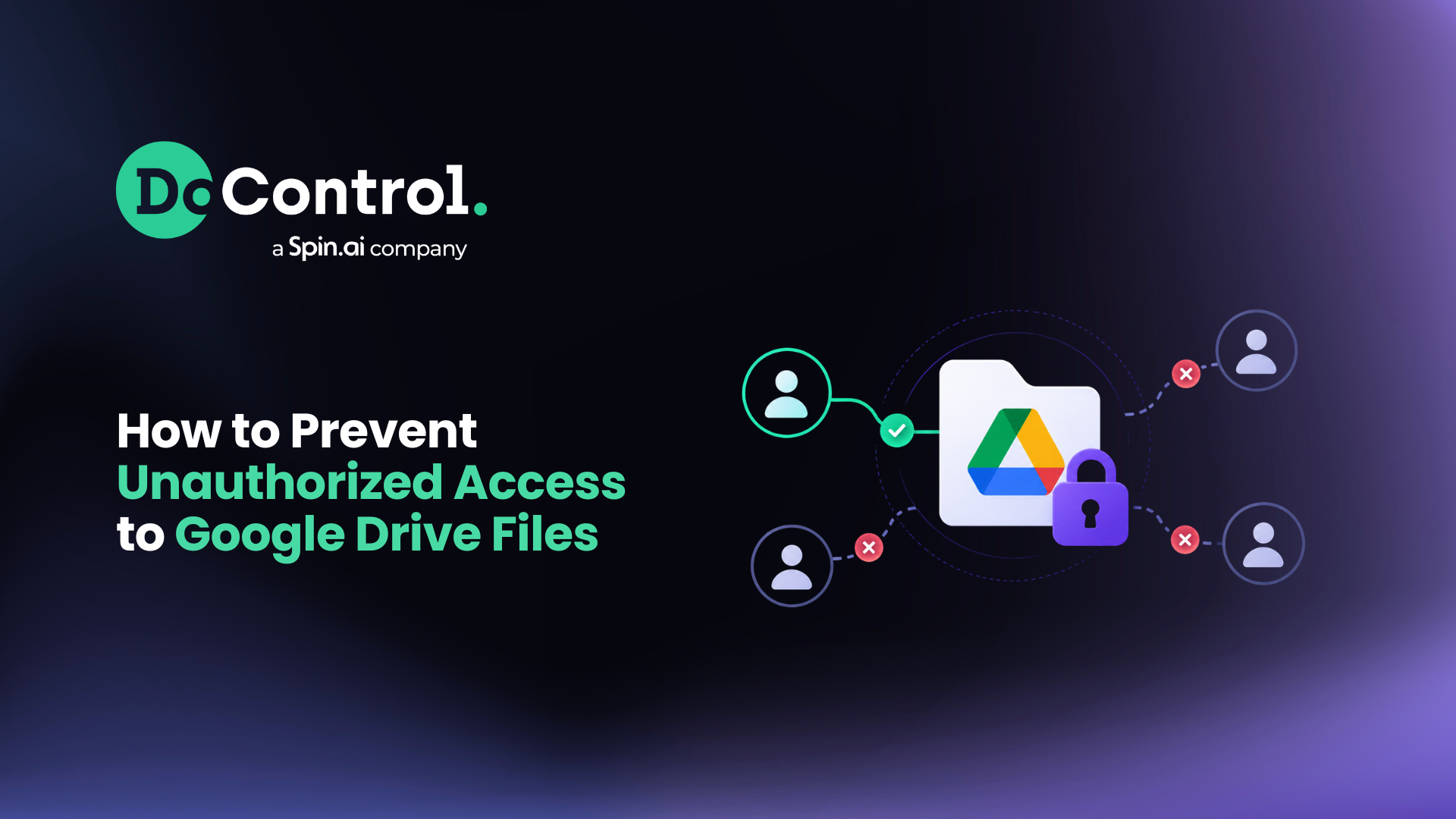
Unauthorized Google Drive access occurs when someone can access a file they should not be able to access under an organization's security policies.
That doesn't necessarily mean an attacker has compromised a Google account.
Unauthorized or unnecessary access can also include:
- A former employee who retains access to company files
- A contractor whose access remains after a project ends
- A file shared with a personal Gmail account
- Sensitive data accessible through "Anyone with the link"
- An external collaborator who no longer needs access
- An employee with Editor permissions when they only need Viewer access
- A sensitive file available organization-wide
- A user who receives access through an overly broad folder or Shared Drive permission
Preventing unauthorized access isn't just about keeping the wrong people out. It's also about making sure the right people don't keep access longer than they should.
That makes permission management and data access governance critical components of protecting Google Drive.
How to Prevent Unauthorized Access to Google Drive Files
There is no single setting that prevents every type of unauthorized access. Organizations need layers of controls that address how files are shared, who can access them, what users can do with them, and how those permissions change over time.
Let's look at each more closely.
1. Restrict Public and Link-Based Sharing
One of the simplest ways a Google Drive file can become overexposed is through broad sharing settings.
Google Drive provides several General access options, including Restricted and Anyone with the link. Depending on the account and administrative settings, broader sharing options may also be available.
For sensitive company data, access should be restricted to the specific people and groups that have a legitimate business need whenever possible.
Google also allows file owners to prevent editors from changing permissions or sharing a file and to restrict viewers and commenters from downloading, printing, or copying content.
These controls reduce the ways access can expand after a file is initially shared.
2. Monitor External Access
External collaboration is necessary for most businesses. Vendors, agencies, customers, partners, and contractors all may legitimately need access to Google Drive data.
The problem isn't external sharing itself.It's external access that exists without a current business need.
Organizations should be able to identify:
- What files are shared externally
- Which external users and domains have access
- What permission level they have
- How they received access
- Whether the file contains sensitive information
- Whether that access is still necessary
Security teams managing Shared Drives should also regularly identify Google Workspace files and folders shared externally rather than assuming membership or sharing settings remain appropriate indefinitely.
3. Remove Stale and Unnecessary Permissions
Google Drive access shouldn't be permanent simply because it was legitimate when it was granted.
Consider a contractor added to a project folder.
Six months later, the project ends. The contractor moves on, but nobody removes their permission. Unless another control catches it, that person may retain access long after the business reason disappears.
The same problem can occur when employees change departments, vendors change, projects end, or employees leave the company.
Regularly managing Google Drive user permissions helps organizations identify and remove this unnecessary access before it becomes permanent permission debt.
4. Account for Folder and Shared Drive Permissions
Looking at individual files isn't always enough.
Google Drive files and folders can inherit permissions from the folders in which they reside. That means a user's access may originate higher in the hierarchy rather than from a direct permission on the individual file.
For security teams, the question therefore isn't only:
Who has access to this file?
It's also:
How did they get access?
Understanding the source of access is important when removing it. Otherwise, a security team could modify an individual permission without addressing the folder, group, or Shared Drive relationship responsible for the exposure.
5. Apply Least-Privilege Access
Not everyone who needs access to a file needs the same level of control. Google Drive allows users to be assigned roles such as Viewer, Commenter, and Editor.
Organizations should apply the principle of least privilege by giving users the minimum access necessary to complete their work.
Someone who only needs to read a document shouldn't automatically receive permission to edit it. Likewise, users shouldn't retain access to files simply because they needed them at some point in the past.
Least privilege isn't a one-time configuration. As roles, projects, and responsibilities change, access needs to change with them.
6. Prioritize Sensitive Data
Not every Google Drive permission carries the same level of risk.
A public marketing asset and a spreadsheet containing employee information shouldn't be treated identically simply because both are shared.
Security teams need to evaluate access alongside data sensitivity.
Google Workspace provides native data protection and classification capabilities that can help organizations identify sensitive content and apply policies to it. Organizations can build on those capabilities with contextual DLP and data access governance to understand not only what a file contains, but also who can access it and whether that access creates risk.
For a deeper look at this problem, see our guide to securing sensitive data in Google Cloud.
7. Restrict Resharing, Downloading, Copying, and Printing
Preventing unauthorized access also means thinking about what happens after access is granted.
Depending on the file and use case, Google allows owners and administrators to place restrictions on actions such as resharing, changing permissions, downloading, copying, and printing.
These controls can help reduce the risk that sensitive information is redistributed beyond its intended audience.
They should be part of a broader Google Workspace Security strategy that protects data, identities, applications, and configurations across the environment.
8. Continuously Monitor and Remediate Access
This is where enterprise Google Drive security becomes significantly more complicated.
A permission audit tells you what access looks like at that moment. But Google Drive doesn't stop changing after the audit.
Employees create new files. Teams share folders. Contractors get added to projects. Users leave. Group memberships change. Sensitive data gets uploaded. New external collaborators appear.
A secure environment today can slowly accumulate unnecessary access tomorrow. That's why mature organizations combine historical permission cleanup with continuous access governance.
The goal is not simply to fix risky permissions once, it's to prevent them from accumulating again.
How Do I Find Unauthorized Access in Google Drive?
For an individual Google Drive file or folder, users can open the item's sharing settings to review the people and groups that currently have access and its broader General access setting.
For an organization, the question becomes considerably more complicated.
Security teams may need to answer questions such as:
Which Google Drive files are publicly accessible?
Identify files configured for public or broad link-based access and determine whether those sharing settings are appropriate for the data involved.
Which files are shared outside the organization?
Review external users, domains, contractors, vendors, customers, and other third parties with access to company data.
Which files are shared with personal accounts?
Corporate data accessible through unmanaged personal accounts can create additional risk because the organization may have less visibility and control over those identities.
Do former employees still have access to files?
Offboarding should account for historical file-sharing relationships and not simply disable a departing employee's corporate account.
Which sensitive files have excessive access?
Combine data sensitivity with permission context to prioritize the access relationships that present the greatest risk.
Where is access inherited?
Determine whether access was granted directly to a file or inherited through a folder, group, or Shared Drive.
For one known file, reviewing its sharing settings is straightforward.
Across thousands or millions of assets, discovery becomes the bigger challenge.
How Do You Remove Unauthorized Access From Google Drive?
For a known file, removing access is relatively simple:
- Open the file or folder in Google Drive.
- Select Share.
- Review the people and groups with access.
- Find the user whose access should be removed.
- Select Remove access.
- Review the file's General access setting for broader link-based access.
- Save the changes.
This works when you already know which file and which user need remediation.
The challenge is finding every unnecessary permission across an enterprise environment.
A former contractor, for example, may have access to hundreds of files scattered across different employees' My Drives, folders, and Shared Drives. A security team first needs to discover all of those access relationships before it can remove them.
For larger cleanups, organizations can bulk remove Google Drive sharing permissions using native methods, APIs, or security tooling depending on the scale and complexity involved.
Why Google Drive Access Becomes Hard to Manage at Scale
The biggest Google Drive access problem isn't usually that administrators don't know how to remove a permission.
It's scale and context.
Imagine one employee sharing a folder with one external contractor. The project ends, but the permission stays.
Now multiply that relationship across:
- Thousands of employees
- Millions of files
- Years of collaboration
- Vendors and contractors
- Former employees
- Personal email accounts
- Google Groups
- My Drive
- Shared Drives
- Sensitive and regulated data
The organization's actual access environment can eventually look very different from what administrators intended.
And simply knowing that a file is "shared" doesn't tell a security team whether that sharing creates risk.
They need context.
Who has access? What data is involved? How was access granted? Why does that person have it? Are they internal or external? Are they still employed? Do they still need it?
That's where permission management becomes data access governance.
How to Prevent Unauthorized Google Drive Access at Scale
At enterprise scale, effective prevention can be broken into four steps:
1. Discover
Continuously inventory Google Drive assets, users, permissions, sharing relationships, external collaborators, and sensitive data.
2. Understand
Add context to determine whether access is appropriate.
A sensitive financial document shared with a current finance executive is very different from that same document being accessible through a former contractor's personal email address.
3. Remediate
Remove access that no longer meets organizational policy.
For historical exposure, this may require bulk remediation across hundreds, thousands, or even millions of assets rather than manually editing permissions file by file.
4. Continuously Enforce
Evaluate new sharing activity against security policies and automatically take action when risky access appears.
This creates a continuous cycle:
Discover → Understand → Remediate → Enforce
Rather than treating Google Drive access as a point-in-time configuration, organizations can govern it for as long as the permission exists.
How DoControl Prevents Unauthorized Google Drive Access
DoControl provides Data Access Governance and DLP for Google Workspace, giving security teams visibility and control over Google Drive permissions at scale.
DoControl continuously maps relationships between users, identities, files, folders, permissions, sensitive data, and sharing activity to help organizations understand not only who can access data, but whether they should.
Security teams can identify Google Drive data that is:
- Publicly accessible
- Shared externally
- Accessible through personal accounts
- Shared with former employees
- Internally overshared
- Accessible to unnecessary users
- Exposing sensitive information
Organizations can then create policies and automated workflows using context such as data sensitivity, user identity, sharing relationship, domain, employment status, and other business factors.
For example, security teams can automatically revoke access during offboarding, remove risky external permissions, remediate public sharing, identify sensitive data exposed to unnecessary users, and clean up historical permissions at scale.
This allows organizations to address both sides of the problem:
Historical remediation: Find and clean up unnecessary access that has accumulated over time.
Continuous governance: Detect and remediate new risky access so the same exposure doesn't simply build back up.
Because preventing unauthorized Google Drive access shouldn't require choosing between security and collaboration.
The goal is to make sure the right people have the right access to the right data for the right amount of time.
{{cta-1}}
Frequently Asked Questions
How do I prevent unauthorized access to Google Drive files?
Restrict public and external sharing, use least-privilege permissions, remove stale access, protect sensitive files with DLP policies, restrict resharing where appropriate, and continuously monitor permissions. For enterprise environments, automated data access governance can help identify and remediate risky access across large numbers of files.
How can I tell who has access to a Google Drive file?
Open the file in Google Drive, select Share, and review the people and groups listed. You should also check General access to determine whether broader link-based access is enabled. Organizations managing large environments need additional visibility across files, folders, users, groups, and Shared Drives to understand access at scale.
Can someone access a Google Drive file without permission?
A person generally needs access through a direct permission, group or folder relationship, broader sharing setting, or an authorized account. Files configured for broad access, such as "Anyone with the link," can be accessed by people who were not individually granted permission, which is why sensitive files should use more restrictive sharing settings.
How do I stop external users from accessing Google Drive files?
Remove the external user's permission from the file, folder, or Shared Drive and review whether access originates from a broader sharing relationship. Organizations should also continuously audit external access so contractors, vendors, partners, and other third parties do not retain permissions longer than necessary.
Can former employees still access Google Drive files?
Former employees may still represent a data exposure risk when files were shared with personal accounts or other identities outside the corporate account being disabled. Offboarding processes should therefore account for historical file-sharing relationships and remove access that is no longer appropriate.
How do I remove someone's access from multiple Google Drive files?
For a small group of known files, users can select the relevant files and modify their sharing permissions. At larger scales, organizations may use APIs or security tools to discover every file a user can access and bulk remove unnecessary permissions.
What is the best way to secure sensitive Google Drive files?
Start by limiting access to users with a legitimate business need, restricting broad and external sharing, applying appropriate permission levels, using DLP and classification controls, and continuously reviewing access. Sensitive data should receive stronger controls because the risk of an unnecessary permission depends heavily on what information that permission exposes.