.png)
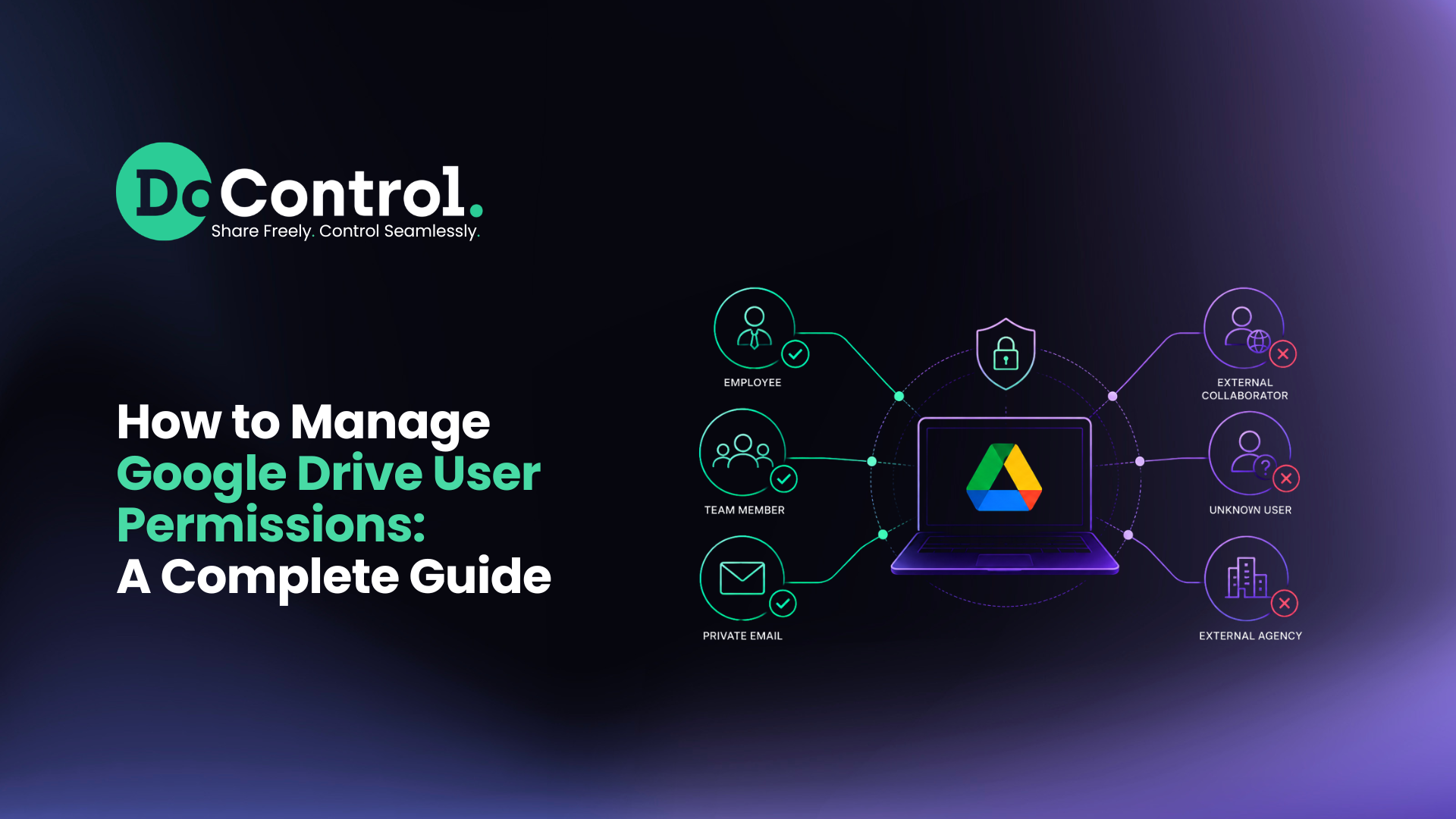
Managing Google Drive user permissions means controlling who can access your organization's files and folders, what they can do with that content, and when their access should be removed.
For individual files, Google Drive makes this relatively straightforward. But across an enterprise with thousands of users, shared files, Shared Drives, external collaborators, groups, and constantly changing permissions, access becomes much harder to manage.
Permission management is therefore an important part of a broader Google Drive security strategy. Organizations need to continuously understand who has access to their data, whether that access is appropriate, and how quickly unnecessary permissions can be removed.
Effective Google Drive permission management requires organizations to:
- Identify who has access to files and folders
- Understand how that access was granted
- Apply appropriate permission levels
- Find unnecessary or risky access
- Remove outdated permissions
- Control external and public sharing
- Review access as users change roles or leave
- Remediate excessive permissions at scale
- Continuously monitor for new exposure
This guide explains how Google Drive permissions work, how to manage them natively, and how organizations can automate Google Drive permission management at scale.
How Do You Manage User Permissions in Google Drive?
For an individual file or folder:
- Open Google Drive.
- Select the file or folder.
- Click Share.
- Review the people and groups with access.
- Select the appropriate permission level: Viewer, Commenter, or Editor.
- To revoke someone's permission, select Remove access.
- Review the item's General access setting to determine whether broader link or organizational access is enabled.
This works well when you already know which file and user you need to manage.
The challenge for security and IT teams is discovering the permissions they don't already know about.
This is where permission management becomes part of the larger Google Workspace security challenge. Security teams aren't simply managing individual sharing settings – they're trying to maintain appropriate access across an environment where users, data, applications, and collaboration patterns are constantly changing.
Why Google Drive Permission Management Gets Hard at Scale
The biggest Google Drive permission problem isn't usually that administrators don't know how to change a permission.
It's scale and context.
Imagine an employee shares a folder with an external contractor. The project ends six months later, but the contractor still has access.
Nobody ever notices.
Now, multiply that scenario across thousands of employees, years of collaboration, external vendors, former employees, Google Groups, Shared Drives, and millions of files.
The organization's effective access environment can look very different from what its administrators intended.
This creates several common Google Drive security risks:
Stale permissions
Users retain access long after the business reason for that access has disappeared.
External sharing
Files remain accessible to contractors, vendors, customers, personal email accounts, or other external users.
Internal oversharing
Sensitive files may be accessible to far more employees than necessary. Internal access still needs to follow least-privilege principles, particularly as AI tools make it easier for users and agents to discover and interact with organizational data.
Former employee access
Offboarding a user's corporate Google account doesn't necessarily address every external identity, personal account, group membership, or historical sharing relationship associated with sensitive content.
Excessive Shared Drive access
Users may remain members of Shared Drives that are no longer relevant to their roles.
Public and link-based exposure
Files can remain exposed through broader sharing settings even when individual user permissions appear appropriate.
These risks are why permission governance should be treated as a core component of Google Workspace security, rather than simply an administrative task.
The question changes from:
"How do I change a Google Drive permission?"
to:
"How do I continuously ensure the right users have the right access to the right Google Drive data?"
That's a much larger data security problem.
How Should Organizations Audit Google Drive Permissions?
A Google Drive permission audit or risk assessment should answer several questions:
This turns a simple permission inventory into data access governance.
And, identifying excessive permissions is only the first step. Once an organization discovers hundreds or thousands of unnecessary sharing relationships, security teams need an efficient way to remediate them.
For environments with significant permission debt, organizations should consider how to bulk remove sharing permissions in Google Drive rather than addressing each file individually.
Visibility is the starting point. Governance and remediation are what actually reduce the risk.
Google Drive Permission Management Best Practices
Organizations should build their Google Drive permission strategy around several core principles.
Together, these practices form an important part of a mature Google Workspace security program.
Remember: the most important best practice is combining historical cleanup with continuous governance. A mature program shouldn't just prevent tomorrow's risky sharing while ignoring years of existing permission debt; and it shouldn't perform a one-time cleanup without controls to prevent that exposure from accumulating again.
When Native Permission Management Stops Scaling
Google Workspace gives administrators important controls for configuring sharing, managing users, establishing policies, and controlling how Google Drive can be used.
But there's a significant difference between configuring permissions and continuously governing data access.
Consider a security team responsible for millions of Google Drive assets.
They don't simply need to know how to remove someone's permission from a file. They need to answer questions like:
- Which sensitive files are currently overshared?
- Which external users still have access to company data?
- Which files are accessible through personal email accounts?
- Which former employees still have historical access relationships?
- Which users have access they no longer need?
- Which sharing relationships violate company policy?
- Which exposures should be remediated first?
- How can thousands of unnecessary permissions be removed without reviewing every asset manually?
At that point, permission management becomes a data access governance problem.
And that's where automation becomes important.
How DoControl Manages Google Drive Data Access at Scale
For organizations that have outgrown manual permission management, DoControl provides data access governance and ongoing data loss prevention (DLP) for Google Workspace at scale.
DoControl continuously maps the relationships between users, identities, files, folders, sharing permissions, and sensitive data across the SaaS environment. This gives security teams visibility into not only who can access data, but also the context needed to determine whether they should.
Security teams can use DoControl to identify Google Drive data that is:
- Shared externally
- Publicly accessible
- Accessible through personal accounts
- Shared with former employees
- Internally overshared
- Accessible to unnecessary users
- Exposing sensitive information
From there, organizations can create contextual policies based on factors such as user identity, data sensitivity, sharing relationship, domain, employment status, or other business context.
DoControl can then automate remediation workflows and policies when access violates those policies – without requiring security teams to manually review and update permissions across individual files.
This allows organizations to move beyond:
Who has access?
to:
Who should have access – and what should happen when they shouldn't?
That's the difference between basic permission administration and continuous data access governance.
Native Google Drive Permissions vs. Automated Data Access Governance
Again, Google Workspace provides security teams with the native controls they need to configure sharing, permissions, users, and organizational policies. But as Google Drive environments grow, the challenge shifts from changing a permission to governing millions of changing access relationships.
Security teams need to determine not only who has access, but whether that access makes sense based on the user, their role, the data they're accessing, how it was shared, their behavior, and the organization's security policies...and then remediate inappropriate access without reviewing every file individually.
Historical Cleanup + Continuous Data Governance
For mature Google Workspace environments, effective permission management requires two complementary strategies.
Historical remediation addresses the permission debt that already exists. Security teams identify files and folders that have accumulated unnecessary access over months or years and perform a bulk cleanup of Google Drive sharing permissions.
Continuous governance and automated remediation prevents that exposure from simply rebuilding after the cleanup. New sharing events can be evaluated against organizational policies and remediated when necessary.
Remediation in Google Workspace is severely limited, which is why most security teams use a tailored Google Workspace security solution like DoControl to:
- do the initial bulk cleanup, and then
- set automated policies to protect the data afterwards and onwards
This historical + continuous approach is especially important for organizations with large, collaborative Google Workspace environments.
A one-time audit isn't enough. Neither is only monitoring what happens going forward.
Strong Google Workspace security requires organizations to address the access that already exists while continuously governing what happens next.
Take Control of Google Drive Permissions
Managing one Google Drive permission is easy.
Managing millions of constantly changing relationships between users, files, folders, groups, Shared Drives, external collaborators, and sensitive data is not.
Organizations need to know who has access to what, why they have it, whether they still need it, and what happens when they don't.
Google Workspace provides the native controls needed to configure access. DoControl provides the visibility, business context, automated policy enforcement, and remediation organizations need to govern that access at scale.
Because Google Drive permission management shouldn't end when access is granted.
It should continue for as long as that access exists.
{{cta-1}}